How to choose what Makli may do, action by action
Off, Explain only, Ask me first or Automatic: setting each Makli action for tickets and live chat, which preset to start with, and the limits you cannot loosen.
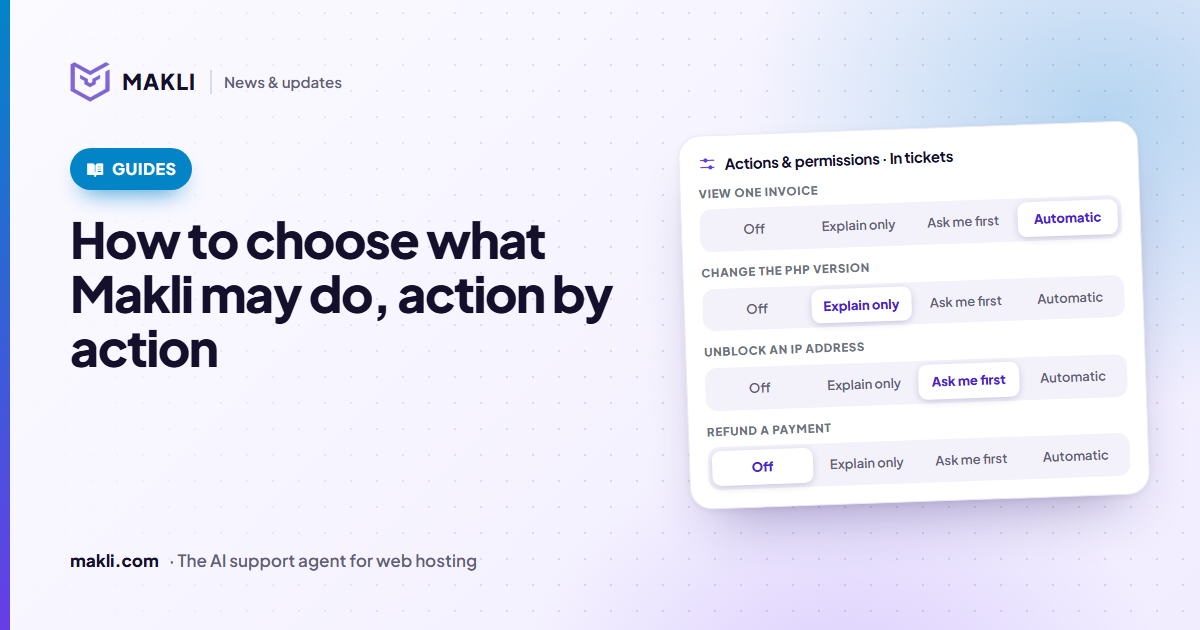
- Every Makli action has one of four settings: Off, Explain only, Ask me first or Automatic.
- Out of the box, look-ups run automatically, changes ask you first and destructive actions are off.
- Live chat has its own column, and a chat cannot wait for an approval, so Makli offers a ticket instead.
- A few actions always wait for a person, whatever you choose.
The first question a hosting team asks after connecting an AI agent is not "what can it do?" but "what should I let it do?" Looking up an invoice is harmless. Unblocking a client's IP in the firewall is usually fine. Refunding a payment or deleting a mailbox is a different matter. Makli does not make you pick one level of trust for everything: each action has its own setting, and you can set it differently for tickets and for live chat. This guide explains the four settings, where to start, and how to loosen things as you gain confidence.
The four settings
You find them in WHMCS under Makli → Actions & permissions. Every action that is not a basic ticket control (handing over to your team, replying, flagging spam) has one of these:
Actions & permissions · In tickets
| Setting | What Makli does when the action is needed |
|---|---|
| Off | Never offers or runs it. If the ticket needs it, your team takes over. |
| Explain only | Changes nothing. It tells the client how to do it themselves, and never says it did it. |
| Ask me first | Prepares the action with all its details and waits for a staff member to approve it on the ticket. |
| Automatic | Runs it straight away, then replies with the result. |
With Ask me first, the prepared action appears in the Makli panel on the ticket. When a staff member presses Approve, Makli runs it and replies to the client with the result. Until then nothing has changed.
Explain only works best with your own words
Each action has an optional field, Extra instructions for Makli. Under Explain only, Makli uses what you write there as the basis of its explanation. If you would rather clients change their own PHP version, set that action to Explain only and write the steps for your control panel, or link your knowledge base article. The client gets your process instead of a generic one.
Where to start: the presets
Setting every action by hand is a lot of clicking, so the Actions page has three presets. Each one sets every action by its risk level: read-only, change, sensitive, financial or destructive.
- Safe start (recommended): look-ups run automatically, anything that changes something asks you first, destructive actions are off.
- Balanced: look-ups and everyday changes run automatically; sensitive and money actions ask you first; destructive actions stay off.
- Hands-off: almost everything runs automatically; money and destructive actions still ask you first.
A preset keeps the instructions and limits you set on each action, and you can change any single action afterwards. Actions that are off by default, such as refunding a payment, stay off under Safe start and Balanced. Hands-off raises them to Ask me first, never further.
Makli's defaults for a new installation follow the same pattern as Safe start. A good rhythm is to run for a while on Safe start, watch which approvals your team presses without changing anything, and switch those actions to Automatic one by one.
Two brakes on Automatic
Under More options, an Automatic action can have two extra limits:
- Minimum confidence (0–100). Makli runs the action automatically only when it reports at least this confidence that the action is right for the ticket. Below that, it asks you first.
- Daily limit. The number of automatic runs per day. After that, the action asks you first for the rest of the day.
The daily limit is useful for actions that are safe one at a time but would be odd in bulk. If a firewall unblock suddenly runs forty times in a day, you want a person looking at it.
Live chat is a separate column
A ticket can wait an hour for your approval. A visitor in the live chat on your client area cannot. So in the live chat column, Ask me first becomes Offer a ticket: Makli tells the client a staff member needs to review it and offers to open a support ticket with the conversation attached.
By default, live chat follows the ticket setting, with one cap: sensitive, financial and destructive actions are never automatic in chat. If a ticket setting is Automatic for one of those, chat offers a ticket instead, and the Actions page marks the action as capped. The addon also refuses to save Automatic in the chat column for those actions. You can give any action its own chat setting, or make chat follow the ticket setting again.

| Invoice | Due | Amount |
|---|---|---|
| #10482 | 6 Dec | $14.99 |
Makli AI is thinking…Limits you cannot loosen
Some rules sit above your settings because getting them wrong costs real money or access:
- Recording a bank transfer from a client's payment proof, and adding account credit paid by bank transfer, always wait for a person. Someone has to check the bank first.
- Suspending or unsuspending a mailbox is held at Ask me first.
- Changing a client's login email from a ticket waits for staff even when updating contact details is Automatic, because the sender address of an email can be forged.
- Who is asking matters. Changes run only for the verified account holder; guests get read-only help. Our post on how Makli keeps your WHMCS safe covers that in more detail.
Ask Makli, the staff assistant inside WHMCS admin, has its own rule: every change it prepares waits for the staff member to press Confirm, whatever the ticket setting. Anything you switched off stays off there too.
When a setting stops Makli
When Makli hands a ticket to your team because an action it needed is Off or set to Explain only, the handover card on the ticket says so plainly: which action, which setting and channel stopped it, and that an administrator can change it under Actions & permissions if Makli should handle it next time. Over a few weeks these cards show you which actions are worth switching on.
Check your choices before going live
Test Makli runs on real tickets and applies your settings exactly as a live run would, but changes nothing and sends nothing. For each action it shows the outcome: checked for real (look-ups), would do this, would ask your team to approve, would explain only, or not allowed here. Run it on a handful of typical tickets after changing a preset, and you see what the change means before a client does. The CSF unblock post is a good example of one action worth testing this way.
The security page describes the rest of the safeguards around actions.
Not sure where to set the line for your team? Start free on Safe start, run Test Makli on your own tickets, and switch actions to Automatic once the approvals show they are routine.
Keep reading
 Hosting support
Website down? One check for DNS, SSL, firewall and account
How Makli answers a site-down ticket: domain expiry, WHOIS, DNS, the live page, SSL, the client's firewall block and the account. A cause only when verified.
 Product updates
Google Workspace sold through WHMCS: what Makli checks
Workspace mail not arriving or landing in spam? Makli checks MX, SPF, DKIM and DMARC, and can read the plan, seats and suspension reason. Read-only.
 Product updates
DirectAdmin and WHMCS: what Makli reads and changes
43 DirectAdmin actions for WHMCS hosts: account status, PHP logs, mail delivery, DNS, SSL and backups. What runs on its own and what waits for you.