Test AI support before going live, on your own tickets
The usual way to test AI support before going live is to switch it on and watch, so your clients find the mistakes first. Test Makli lets you find them yourself, on tickets your team already answered.
- Runs Makli on any WHMCS ticket, open or closed, even while Makli is off.
- Read-only checks run for real; replies, changes and approvals are only recorded.
- Your Actions & permissions apply exactly as on a live ticket.
- The report puts Makli's reply next to your team's.
What is Test Makli?
Before an AI answers your clients, you want to see it handle the tickets your team really gets: the bounce from a full mailbox, the site that broke after a plugin update, the client who paid by bank transfer and wants the service back today. Test Makli is how you test AI support before going live.
Every WHMCS ticket has a Makli panel. Test Makli runs Makli on that ticket the way it would for real and shows the checks, the actions it would take and the reply it would write. It works on open and closed tickets, and when Makli is switched off or outside working hours. You choose what Makli sees:
- As the ticket was first opened: only what the client wrote before your team first replied.
- The conversation so far: everything up to the client's latest message, for long tickets and follow-ups.
Staff replies after that point are hidden, so Makli cannot copy your team. The first one is kept for the report as a comparison.
How to test AI support safely on real tickets
A test that only shows a reply, without the look-ups behind it, tells you little. So the work is split:
- Read-only checks run for real: service and invoice status, DNS, logs, mailbox usage.
- Everything else is recorded, not done: no reply or note, no status or department change, no approval queued, no order, payment, email or account change, nothing changed on a panel or server.
Makli keeps a list of operations that only read and holds back everything else, so a new kind of change is held back by default. Your Actions & permissions apply as they would for real: if an action is Off, Explain only or Ask me first, the test stops where the live ticket would.
Reading the test report
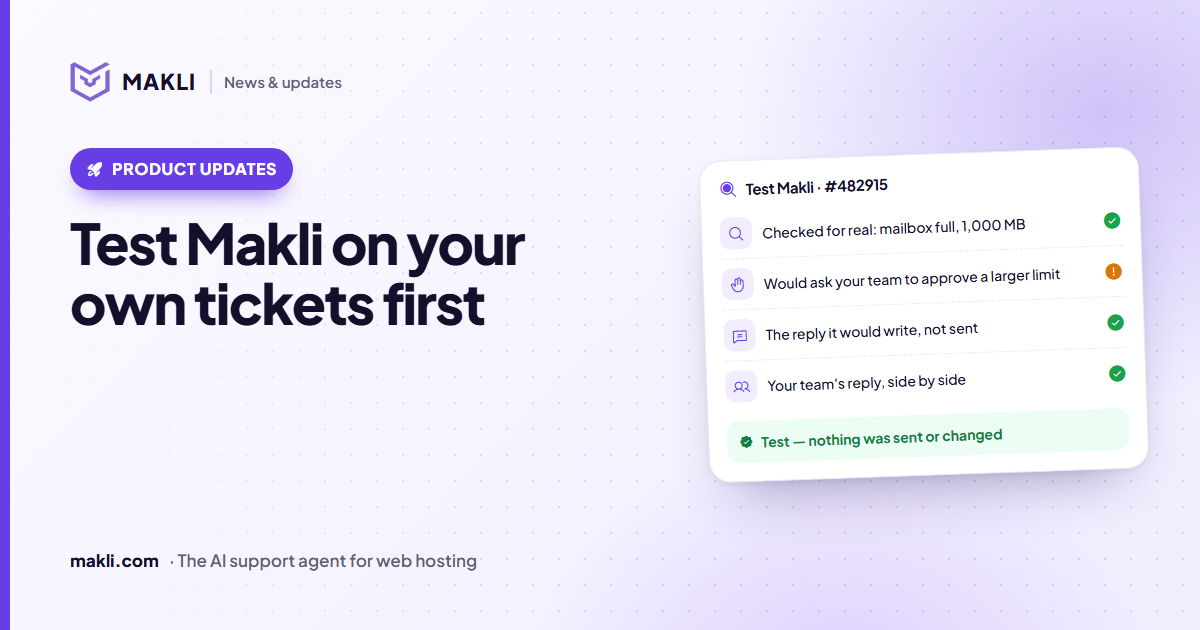
The report carries the badge "Test, nothing was sent or changed" and has four parts:
- What Makli would do: send the reply, send and close, save a draft, post a staff-only note, hand over, ask for approval or change the status. This depends on your delivery settings, so it tests those too.
- The reply Makli would write, with a Copy reply button.
- Checks and actions, one row per step: Checked for real, Would do this (not done), Would ask your team to approve, Not allowed here, Would explain only or Check failed.
- What your team replied, with the staff member's name.
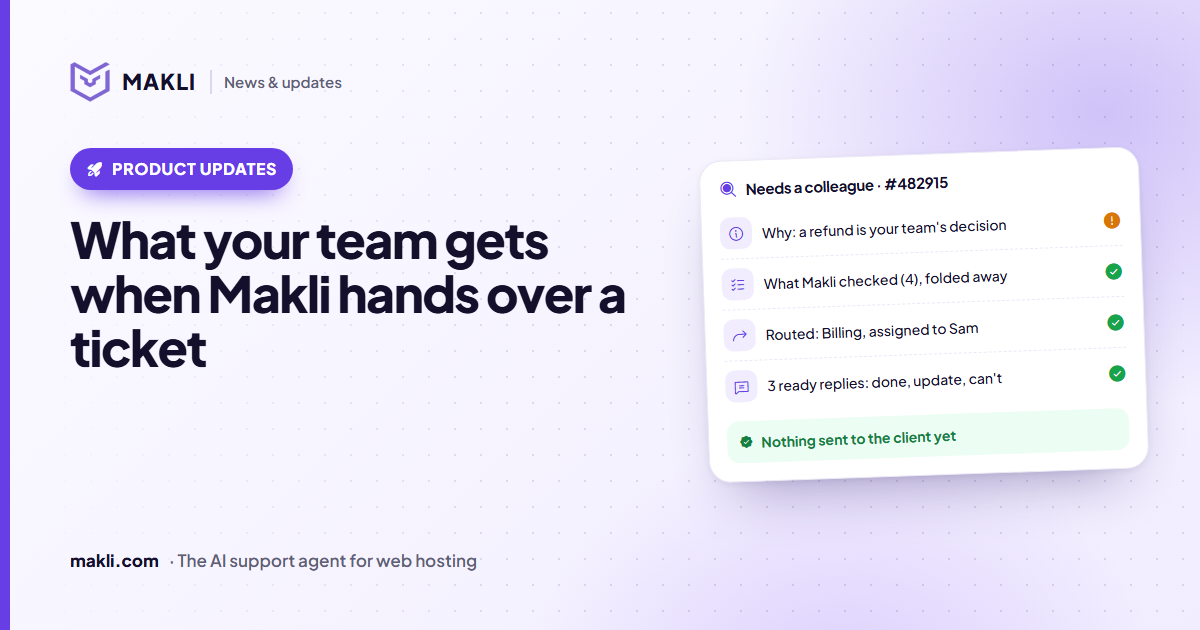
If Makli would hand over, the report shows the summary your colleague would get, as in how Makli hands a ticket to your team.
A quick example
A closed ticket: mail to [email protected] was bouncing. You test it As the ticket was first opened. Makli finds the cPanel service and sees the mailbox at its 1,000 MB limit. Raising a mailbox limit is set to Ask me first, so the report says Makli would ask your team to approve, and shows the reply it would send after approval, next to your colleague's.
Checks show today, not the day of the ticket. On an old ticket the mailbox may have been cleaned up since, so Makli may rightly answer differently.
A test does not count against your monthly conversation limit. It uses AI tokens, so it counts against your AI allowance, listed as "Test runs (Test Makli in WHMCS)" on the Usage page. It usually takes a minute or two.
How to run your AI support trial
- Pick ten to twenty recent tickets of your most common kinds: billing, email, site down, DNS, renewals.
- Test each As the ticket was first opened and compare Makli's reply with your team's.
- Where Makli was wrong, teach it in AI Training. Where it stopped at a setting you are happy to relax, change the action.
- Test the same tickets again.
- Switch Makli on for the ticket types it handled well. Keep the rest on Ask me first.
Test Makli sits next to the verified-owner check and the approval queue on the security page. To try it on this week's tickets, see pricing.
Frequently asked questions
How do I test an AI support agent before going live?
Run it on tickets your team has already answered and compare its replies with theirs, without letting it send anything. With Test Makli in WHMCS, read-only checks run for real while replies, changes and approvals are only recorded, so no client sees the test.
Does Test Makli send anything to the client?
No. A test posts no reply or note, changes no ticket status, queues no approval and changes nothing on an order, payment, account, hosting panel or server. Only read-only look-ups such as DNS, logs and mailbox usage run for real.
Do test runs count against my plan?
A test does not count against your monthly conversation limit. It does use AI tokens, so it counts against your monthly AI allowance and appears on its own line on the Usage page. If the allowance is used up, the test is refused and nothing is written on the ticket.
Can I test Makli while it is switched off?
Yes. Test Makli works on open and closed tickets, when Makli is switched off and outside its working hours, so you can test before anything goes live.